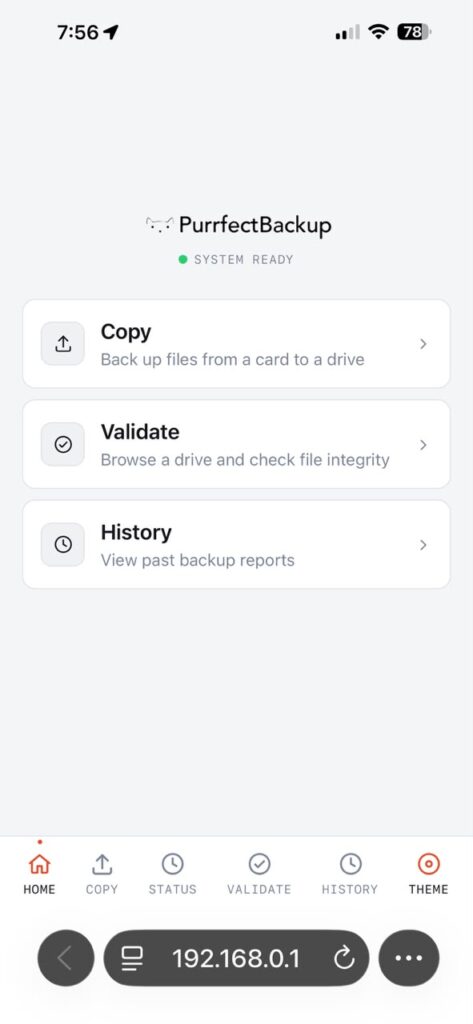
WebUI lets you access and manage PurrfectBackup from any phone, tablet, or computer connected via Wi-Fi. It provides tools for copying files, browsing data, checking storage health, and viewing backup history—all from a convenient web browser.
Starting WebUI
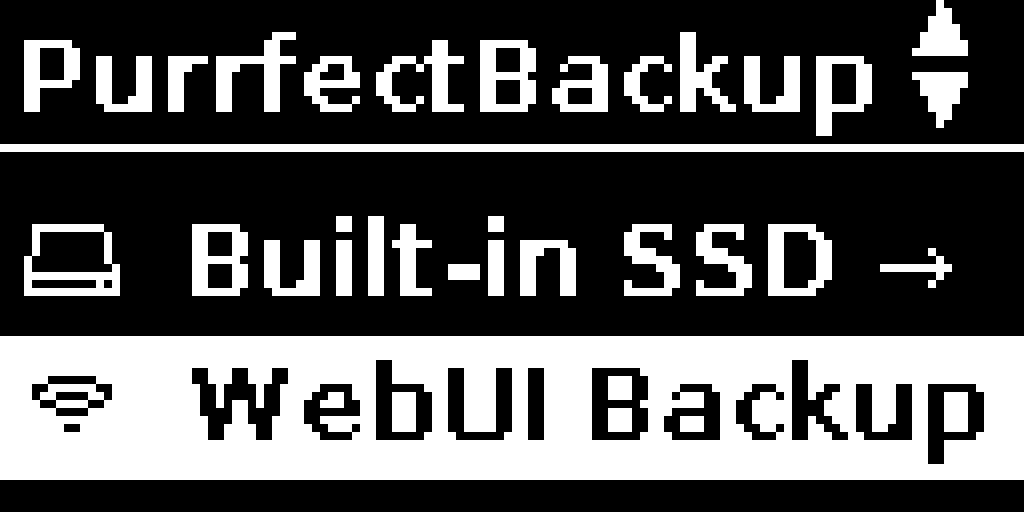
On your PurrfectBackup, press WebUI Button
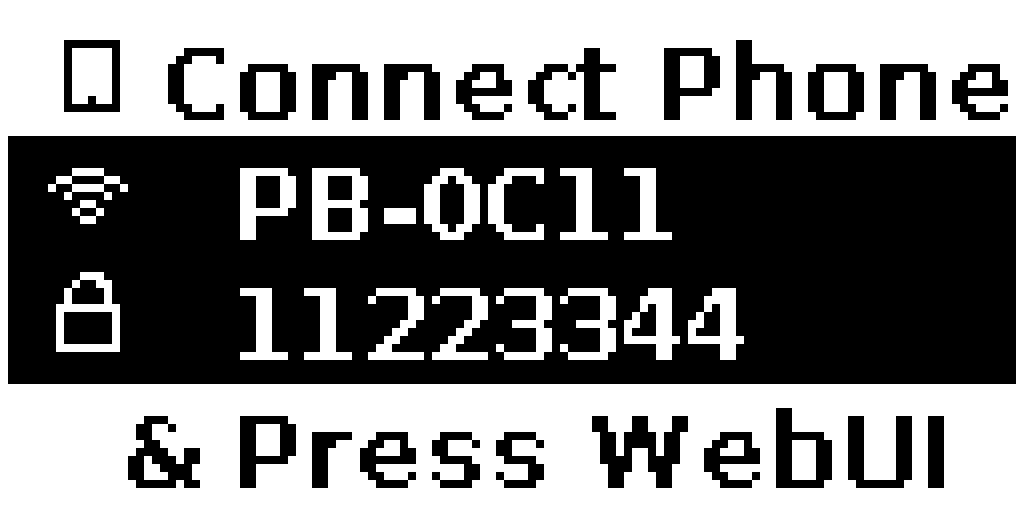
A Wi-Fi hotspot will be created. It will display:
SSID (“Network Name”PB-XXXX“)
Password for connecting
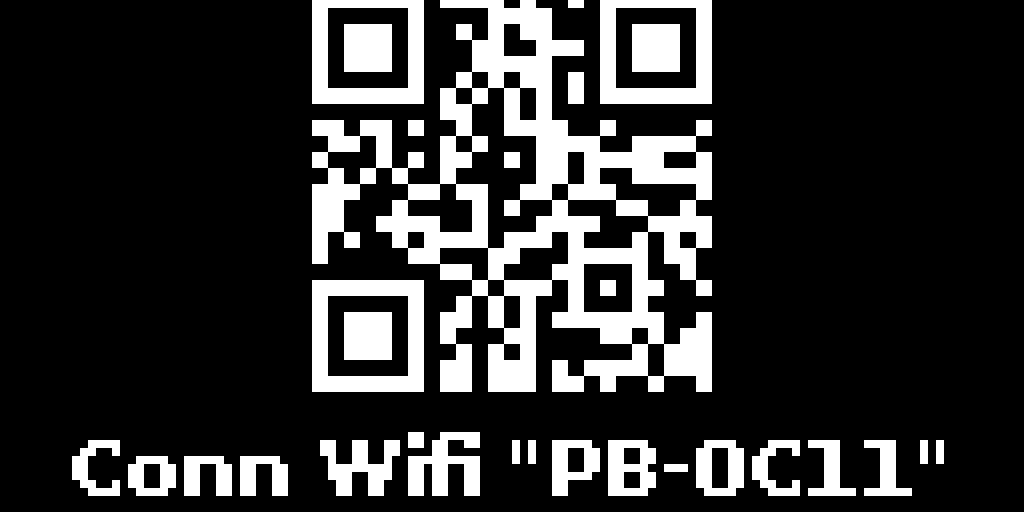
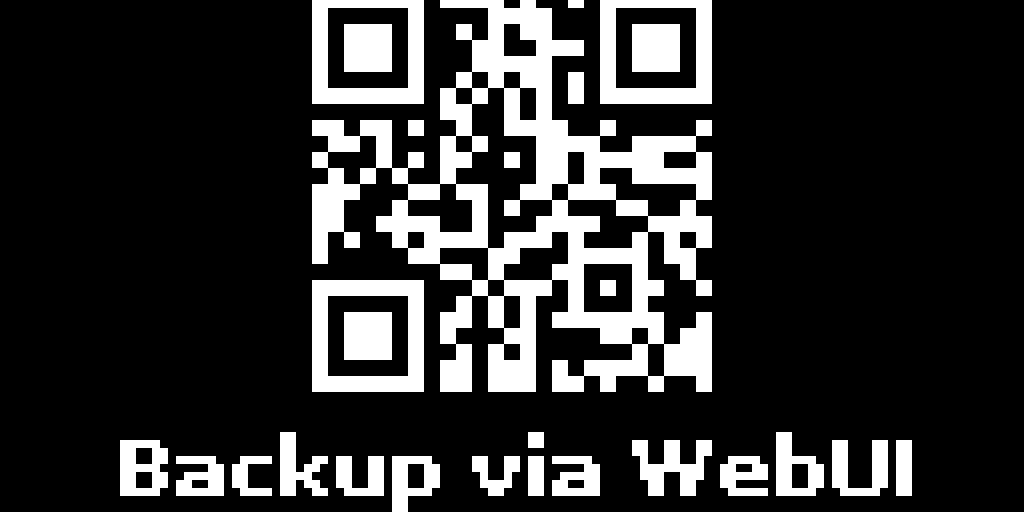
After connecting, press Select on the device to show a QR code to access the WebUI.
Visit URL http://192.168.0.1 or scan the QR to access WebUI from your browser.
To stop the WebUI, press left on joystick
WebUI Functions Overview
WebUI Copy: Copy files from SD card to SSD.
Validate Data: Browse and check file structure on any connected disk.
Copy History: View details of the last 20 backup operations, dashboard and thumbnail preview of first 2 and last 2 files copied on destination SSD / Hard Disk
WebUI Overview
The PurrfectBackup WebUI is a browser-based control panel that provides advanced management features beyond the physical buttons and OLED screen. It can be accessed by pressing the WebUI button on the device, which creates a Wi-Fi hotspot (SSID: “BackMeUp”). After connecting your phone or computer and scanning the QR code shown on the OLED screen, you can access the following functions.
WebUI Copy
WebUI Copy enables file transfers between your source disk (e.g., SD card) and destination disk (e.g., SSD or hard drive) directly from your browser. This section also includes folder management tools.
Accessing WebUI Copy
Click on the WebUI Copy section from the WebUI home screen.
Selecting Disks
Use the dropdown menus to select:
Source Disk (e.g., SD Card)
Destination Disk (e.g., SSD)
Click Load Disks. If the dropdowns are greyed out, ensure the disks are connected and refresh the page.
Available Tabs
Once disks are loaded, three tabs become available:
Copy Via WebUI
Select source and destination folders using radio buttons
New folders can be created in the destination using the Add Folder tab
Click Start Copy to begin the transfer
A progress bar displays the completion percentage and the last 5 files copied
Browse Folder
Browse folders on either the source or destination disk
Preview images (including popular RAW formats such as CR2, NEF, ARW, and DNG)
Download files directly from the browser
Add Folder
Create new folders on the destination disk
Delete Folder
Click the delete icon next to any destination folder
Type the exact folder name to confirm deletion (case and space sensitive)
Validate Data
Validate Data allows you to mount a drive and browse its contents directly in your browser. This function enables you to preview, download, and verify files to ensure your backup is complete and correct.
Accessing Validate Data
Click on Validate Data from the WebUI home screen.
Using Validate Data
Select the drive to check from the dropdown menu
Click Mount Drive
Browse folders and files
Preview images (including popular RAW formats such as CR2, NEF, ARW, and DNG)
Download files as needed
Use Go Back to navigate up one folder level
Note: Only image files can be previewed, including popular RAW formats.
Copy History
Copy History displays detailed information about your recent backup operations, allowing you to review and compare source and destination files. Each backup session generates a complete report with the following views.
Accessing Copy History
Click on Copy History from the WebUI home screen.
Viewing Backup Operations
The history shows the last 10 copy operations from:
Just Copy
Dated Copy
WebUI Copy
Each operation provides four views:
Dashboard
Visual proof with thumbnails showing the first 2 and last 2 photos from the backup
File statistics showing number of photos, videos, and total files
Verification status indicating whether all files were copied successfully
Disk labels for both source and destination
Links to Source List, Destination List, and Compare views
Thumbnails remain visible even if the source card is disconnected
Source
Complete list of files from the source disk (e.g., SD card) at the time of the copy
Displays file names, locations, sizes, and modification dates
Sortable by name or date
Destination
Complete list of files from the destination disk (e.g., SSD or hard drive)
Displays file names, locations, sizes, and modification dates
Sortable by name or date
Compare
File-by-file comparison with detailed statistics
Shows which files are present in both source and destination
Identifies files that are present in the source but missing from the destination
Comparison Tabs
All Files: Shows all files involved in the operation
Same: Lists files present in both source and destination
Missing: Identifies files that are present in the source but missing from the destination
Sorting Options
Name: Sort files alphabetically by name
Date: Sort files by modification date
Summary
Function
Purpose
WebUI Copy
Transfer files between disks and manage folders
Validate Data
Browse and verify disk contents
Copy History
Review and audit past backup operations with visual proof
Together, these tools ensure your backups are complete, verifiable, and easy to manage without requiring technical expertise.